freo.live

Self-Hosted Internet Radio

The whole station.
In your hands.

Your music. Your schedule. Your sound.

Freo is a self-hosted internet radio platform. Build your library, shape the week, take the decks, and discover what connects with your listeners.

Freo 0.3.2 — fresh installation and reboot recovery tested and passed on Ubuntu 24.04 x86_64.

Free for up to three stations · Source available.
How to install → · Release notes ↗ · Explore the demo ↗

YOUR NEXT GREAT HOUR STARTS HERE 01 / DJ BOOTH
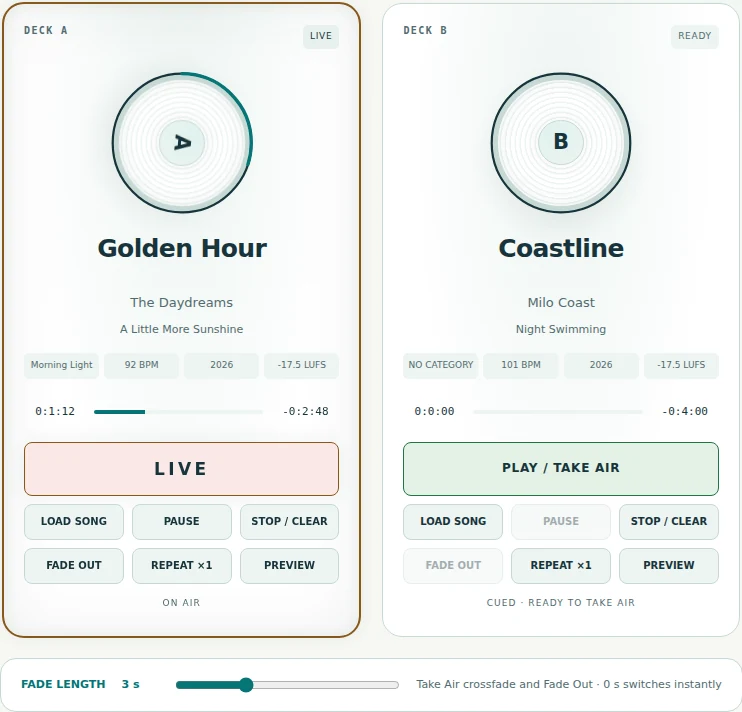
Meet your DJ Booth — Two decks. Private preview. Your moment to take the air.
Meet your DJ BoothTwo decks. Private preview. Your moment to take the air.
REAL FREO. BOTH APPEARANCES.Try Day / Night above

A station with your signature

From your first record
to your next great show.

The best stations have a point of view. Freo gives you the space to find yours—and the tools to bring it to life.

One connected workspace takes you from a carefully chosen library to a full week of programming, a hands-on DJ session, and a station website your listeners can make part of their day.

  1. 01 / COLLECTFind your sound.
  2. 02 / COMPOSEGive it a rhythm.
  3. 03 / BROADCASTMake a connection.
  4. 04 / DISCOVERSee what resonates.

01 / Music & playlists

A collection becomes
a whole world of sound.

From the album you know by heart to tomorrow's discovery. Bring your music together, give it some order, and put it to work.

THE MUSIC LIBRARY

Every record, in its place.

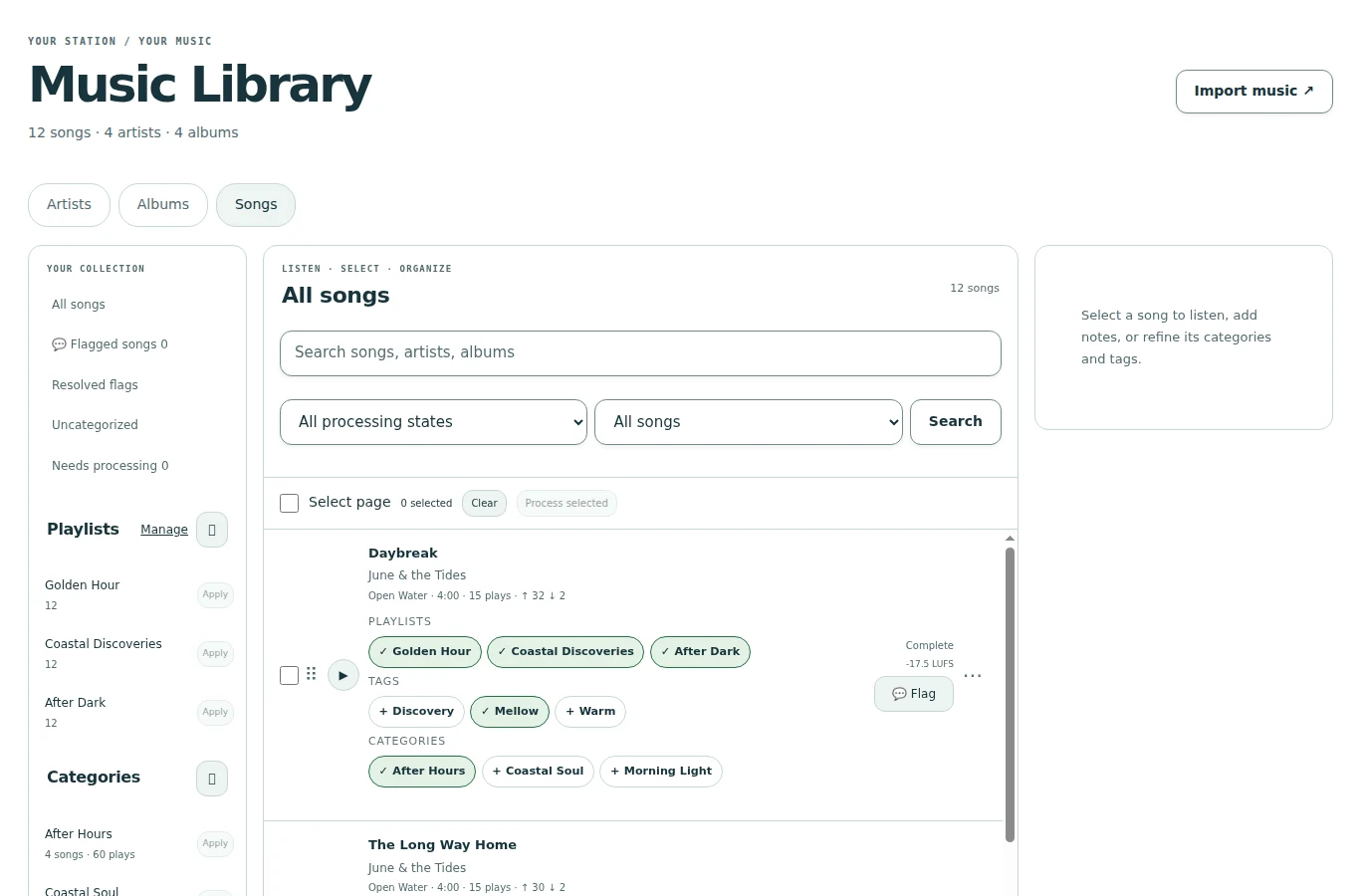
Browse artists, albums and songs. Prepare WAV, M4A, MP3 and FLAC files or whole folders for review before importing. Check detected metadata and artwork, group albums, edit shared details and assign playlists. Compilation albums keep each song’s performing artist.

Your music library — A connected Artist → Album → Song catalog, with categories and tags.
Your music libraryA connected Artist → Album → Song catalog, with categories and tags.
  • Saved import workspaces
  • Duplicate detection & individual retries
  • Waveform & loudness analysis
PLAYLISTS WITH PURPOSE

Set the order. Or find a flow.

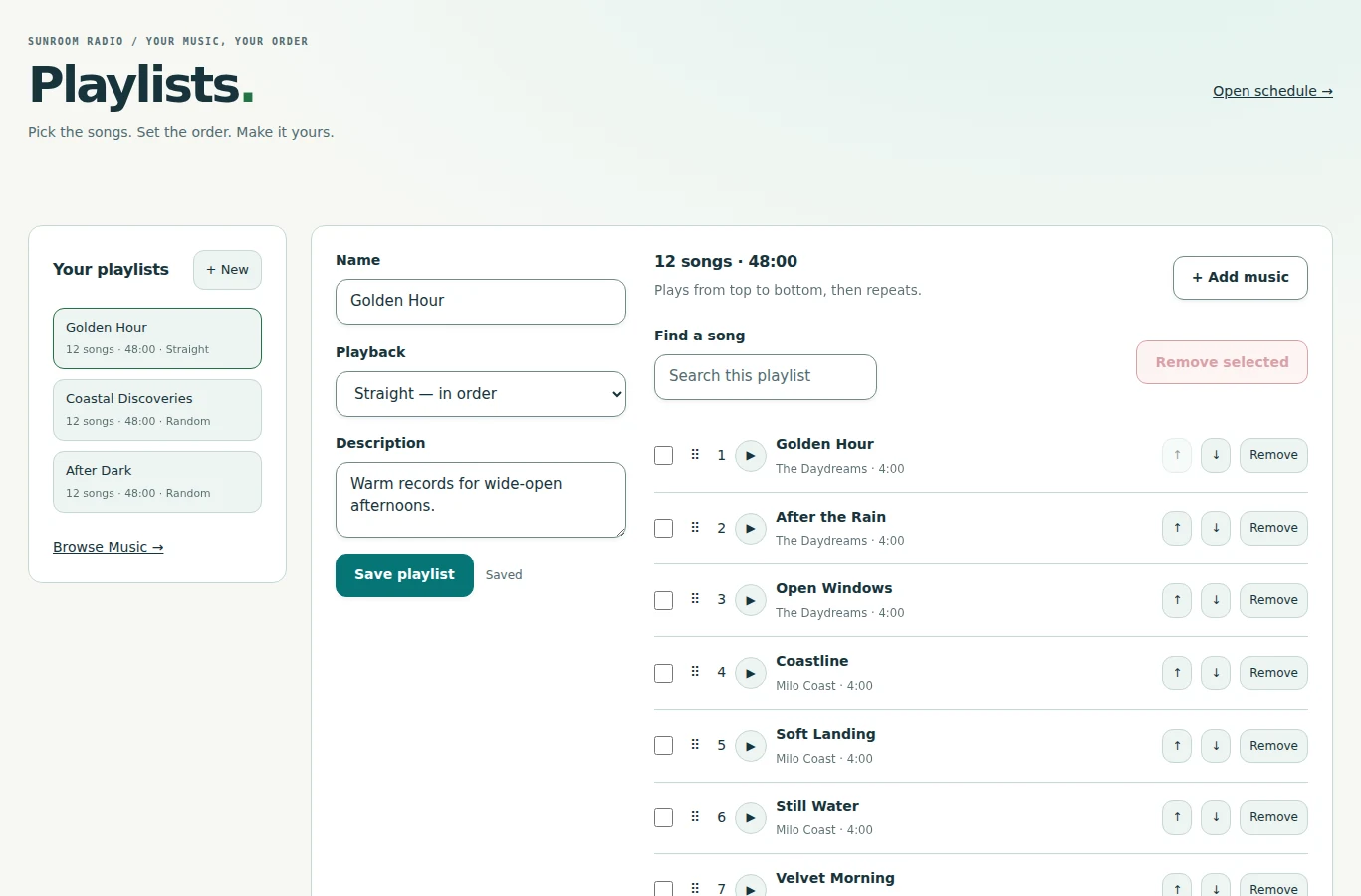
Build a Straight playlist or let Random work through a fresh cycle. Add songs, albums, artists or categories; drag to reorder, then bring your playlist into the schedule.

Playlists, your way — Ordered songs, flexible membership, and a place in the schedule.
Playlists, your wayOrdered songs, flexible membership, and a place in the schedule.
  • Straight or Random
  • Bulk additions
  • Reorder & Undo

Return to uploaded files and saved edits, retry individual failures, or correct metadata without uploading again. Files that never reached the server may need reselection. Explore the import workspace ↗

A more consistent sound. Background analysis measures BPM, loudness and true peak. Non-destructive playback gain helps match song levels while keeping your originals intact.

Inside the music workspace ↗
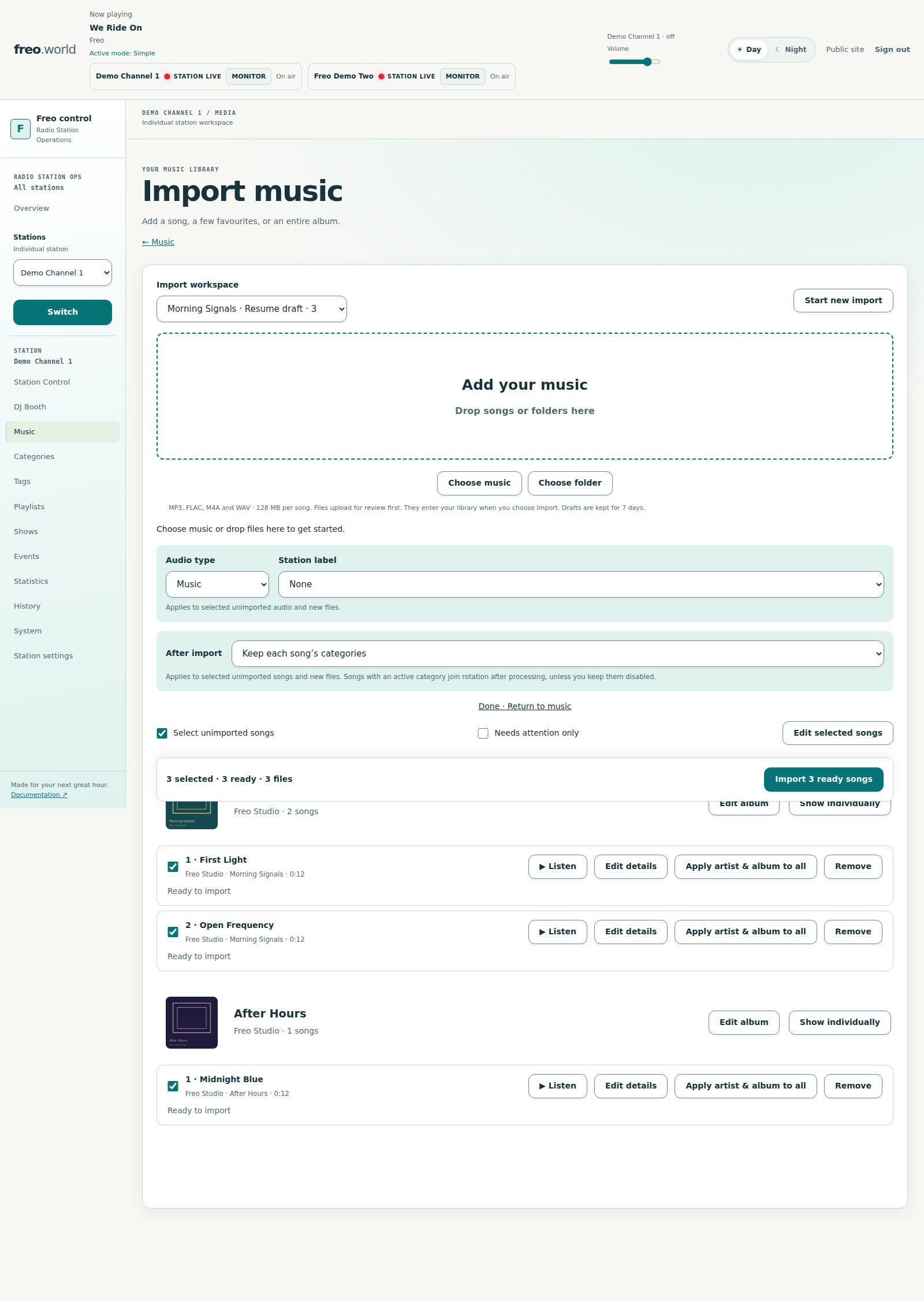
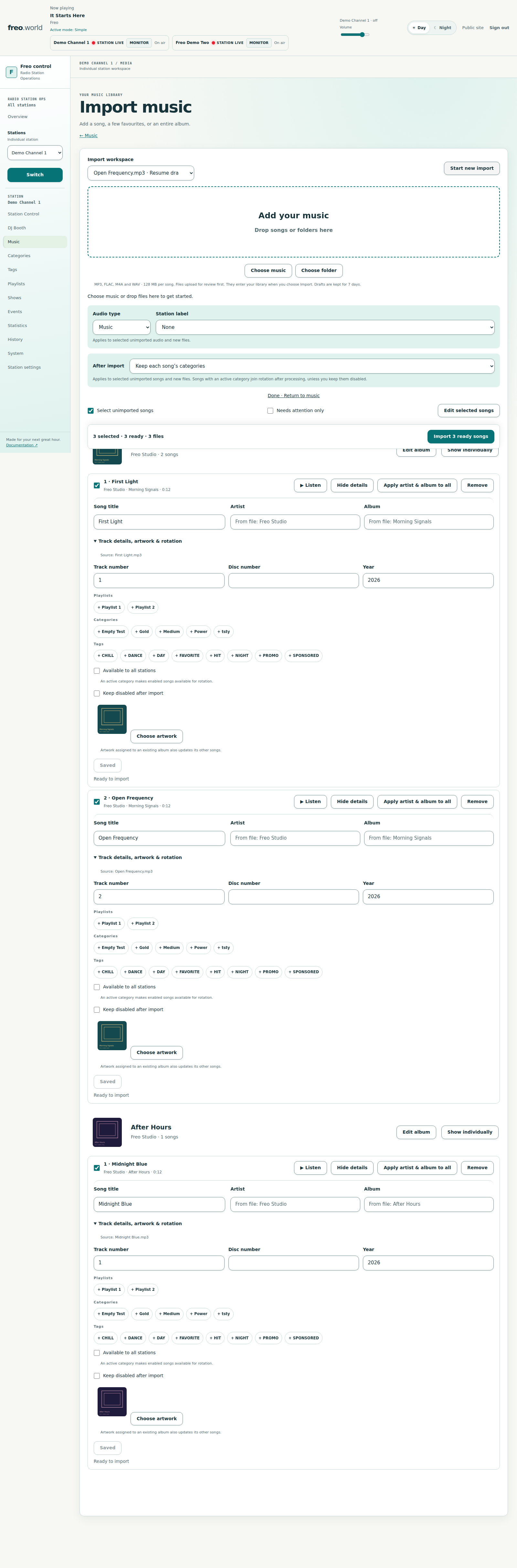
Albums, ready for review — Group songs into albums before importing. This workspace contains three staged example files.
Albums, ready for reviewGroup songs into albums before importing. This workspace contains three staged example files.
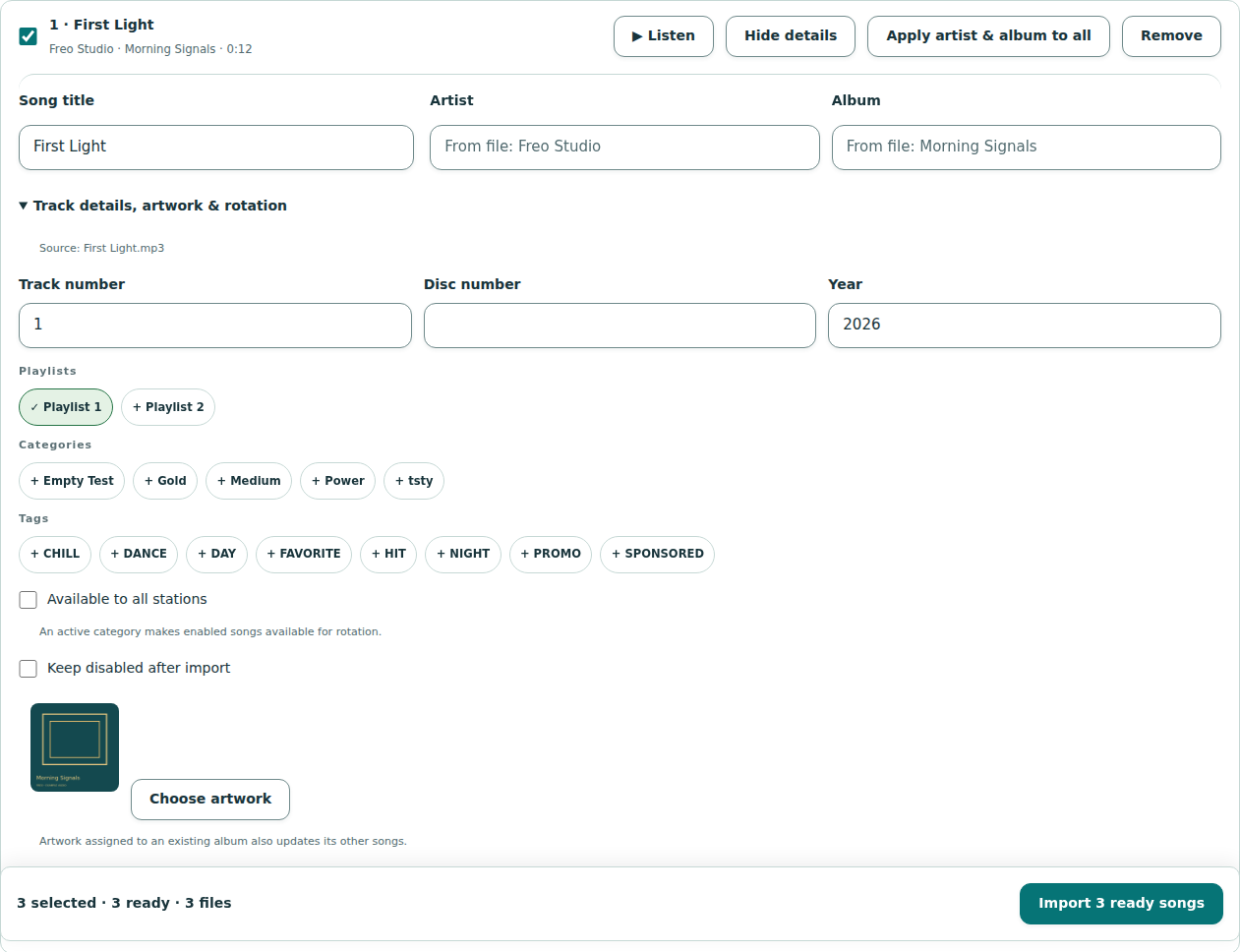
Get the details right — Review artwork, edit track details and choose playlists before importing.
Get the details rightReview artwork, edit track details and choose playlists before importing.
The complete import workspace — Explore the full saved review workspace, including album groups and individual track details.
The complete import workspaceExplore the full saved review workspace, including album groups and individual track details.

02 / Your station, in time

Make every hour
feel like you.

A carefully planned week. A repeatable daily format. One great playlist on repeat. Choose the way you want to program.

SAVE YOUR IDEAS. CHOOSE WHAT PLAYS.

A plan you can return to.

Calendar saves completed edits automatically, including Undo and Redo. Unsaved edits remain recoverable if a connection fails. Shows, Blocks and Simple keep explicit Save controls; changing the active scheduling mode is always a deliberate action.

Reuse a saved Block in Calendar or Simple. Existing selections keep their saved version: editing a Block does not silently change what is already scheduled or playing.

How saving works ↗
THREE WAYS TO FIND YOUR RHYTHM
01

Calendar

Place Shows, saved Blocks and music on dates and times. Repeat daily, weekly or monthly, with autosave and Undo/Redo. Adjust one occurrence or a whole series.

02

Blocks

Compose a full 24-hour format. Assign weekdays, selected dates, or a pattern that rolls from day to day.

03

Simple

Choose a Show, saved Block, playlist, artist, album, category or song. Save your selection, then confirm when it should take over. A Block starts at the beginning and repeats its 24-hour format.

REUSABLE SHOWS

Compose once. Make it a regular.

Build a Show from 15 minutes to 24 hours. Drag in sources, resize sections, combine artists and insert a song for a particular moment. Saved revisions keep future edits deliberate.

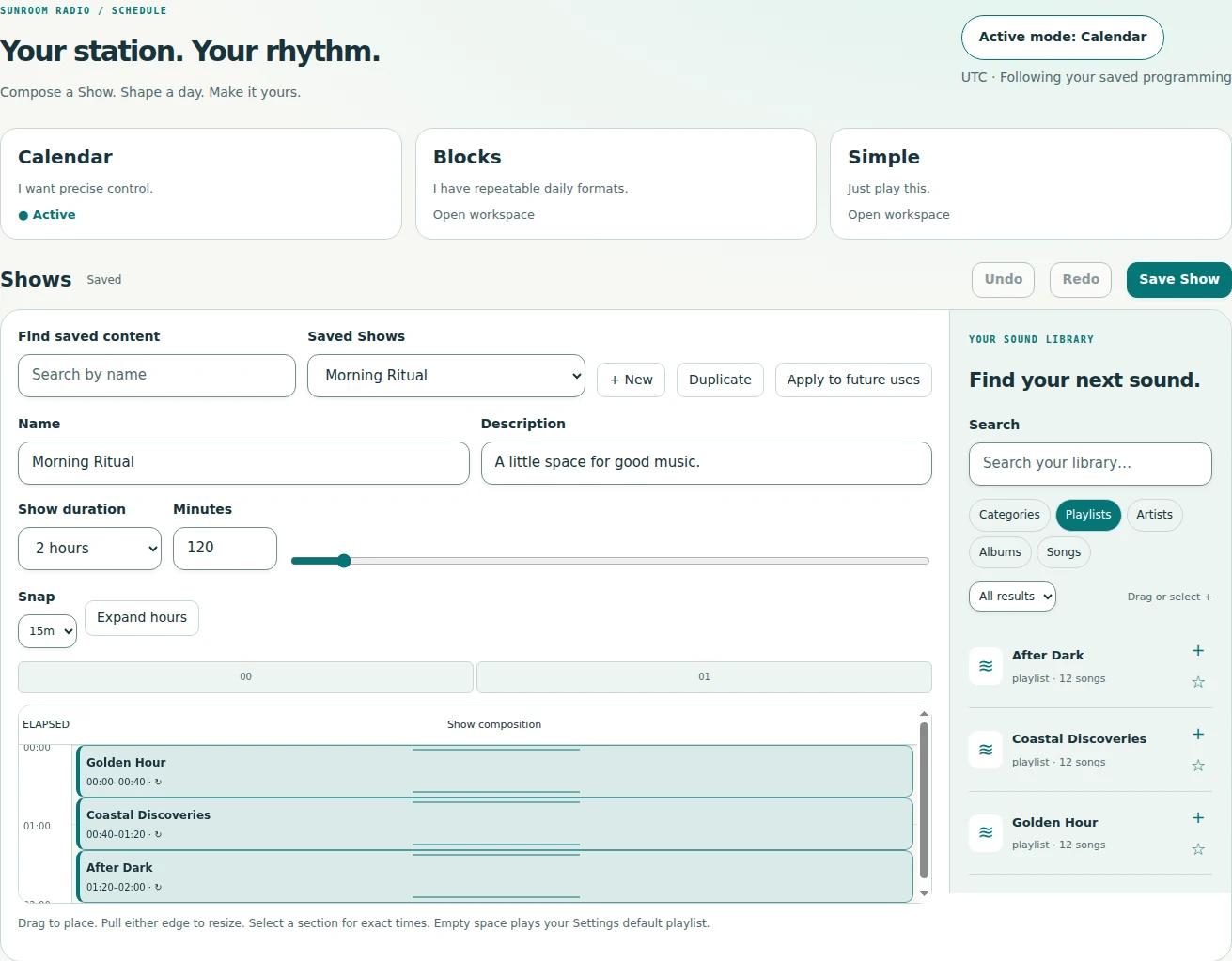
Compose a Show — A reusable timeline of playlists, artists, albums, categories and songs.
Compose a ShowA reusable timeline of playlists, artists, albums, categories and songs.

A DAILY FORMAT

A whole day, thoughtfully arranged.

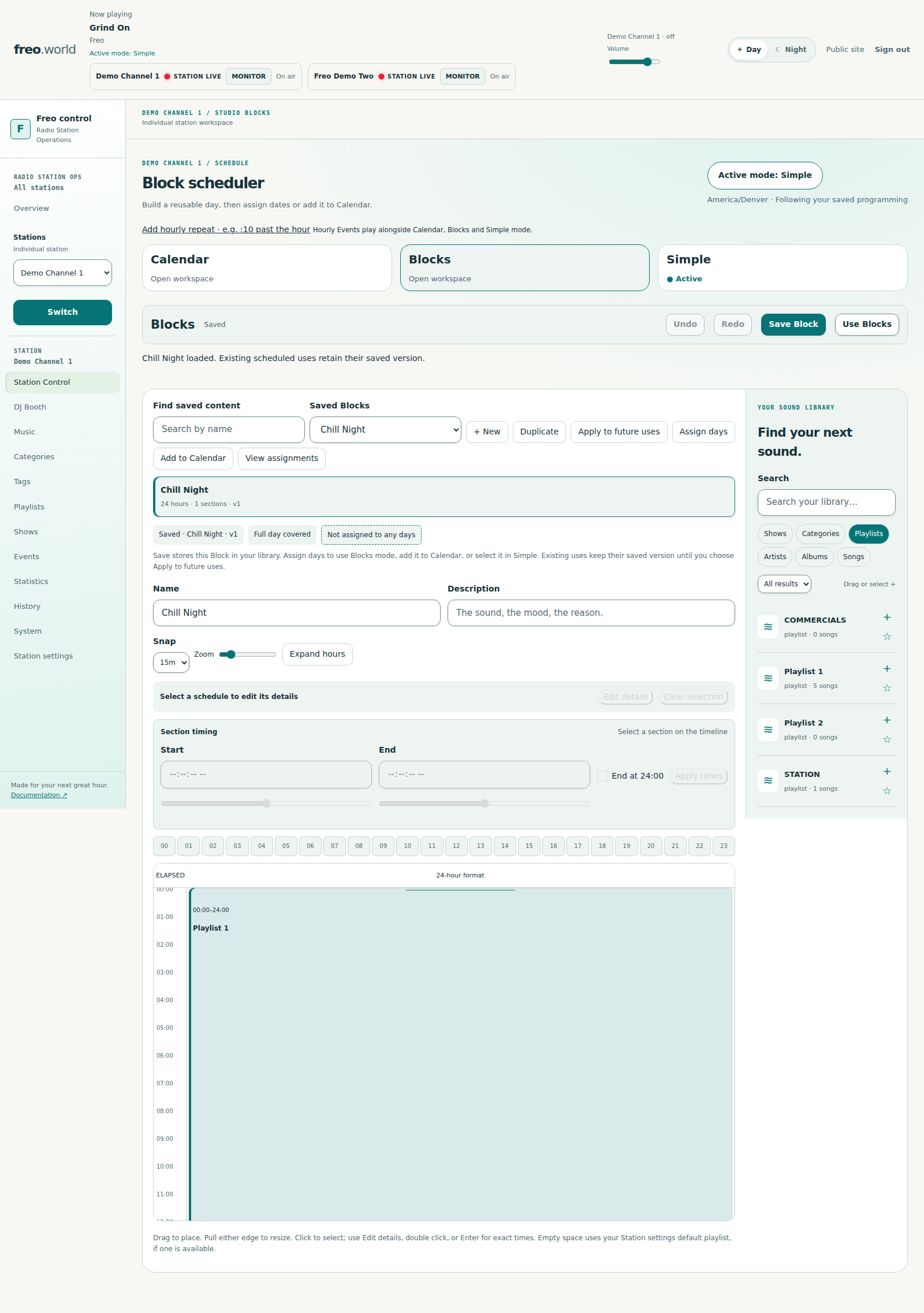
Save a 24-hour Block and give every part of the day its own character. Assign it in Blocks mode, place it in Calendar or select it in Simple. Calendar placements retain their saved version until you choose Apply to future uses. A configured default playlist fills the gaps.

Explore reusable Blocks ↗

TIMED MOMENTS

Make room for the message.

Schedule an ID, announcement or commercial sequence once, every 15 minutes, hourly, daily, weekly or monthly in your station’s timezone. Choose individual audio, a playlist item, a whole playlist or an ordered sequence.

New Events wait for the current song to finish. Commercial sequences stay together, with no ordinary music between their items. You choose whether an Event may follow the current DJ song; live microphones remain protected.

Explore Events ↗

Scroll across to explore

Choose your way to program
ModeYour starting pointMade for
CalendarDay, Week, Month or AgendaShows, saved Blocks and music tied to dates, times and recurring series
BlocksA reusable 24-hour compositionWeekday formats, selected dates and rolling daily patterns
SimpleOne Show, saved Block or music sourceContinuous playback with an explicit change when you're ready

Shows are reusable compositions, not a fourth mode. Events work across all three. Scheduling follows station-local time; normal program boundaries let the current song finish.

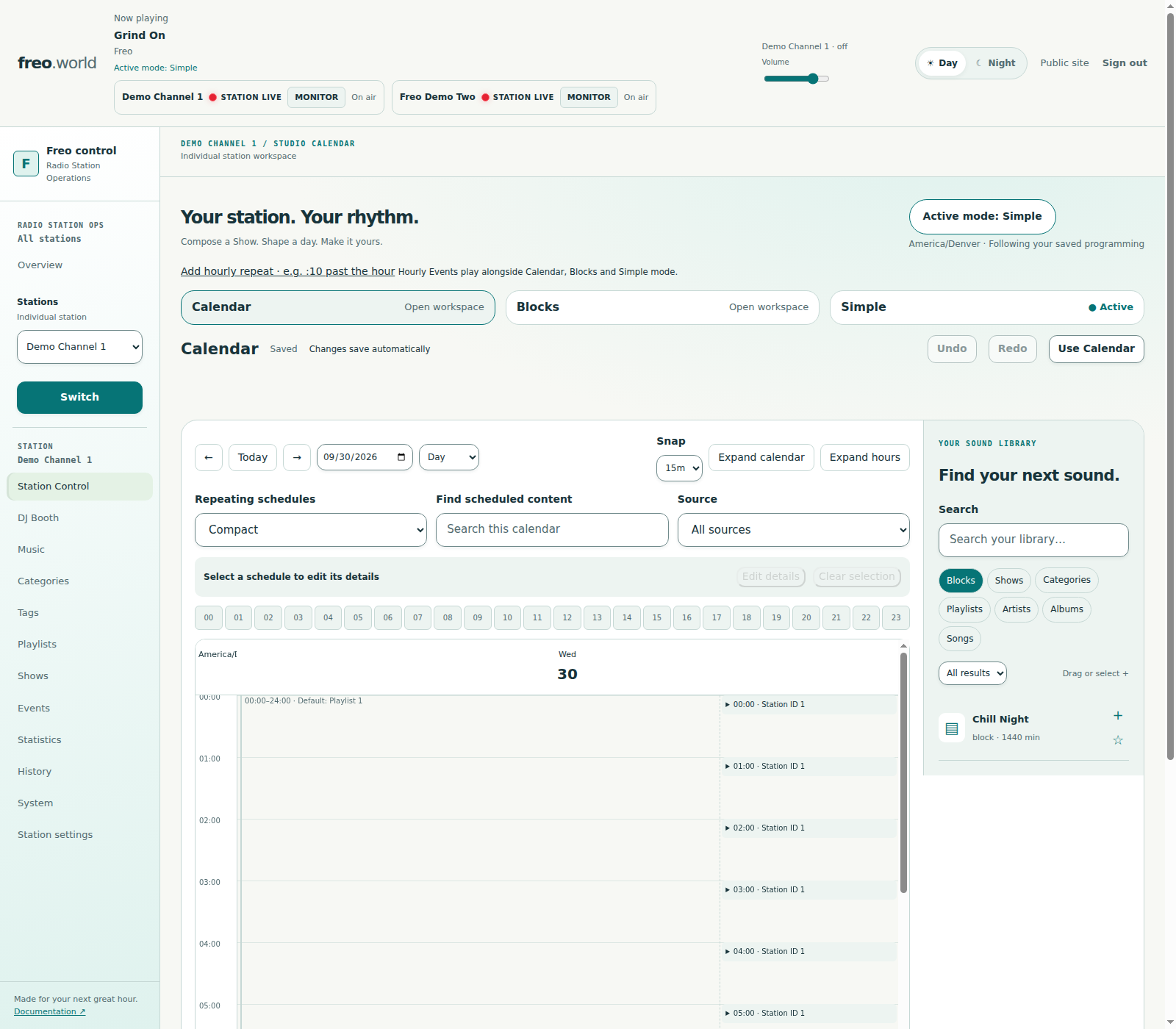
Your week, at a glance — Calendar with autosave, Undo/Redo and a saved Blocks library. Simple remains the active mode in this example.
Your week, at a glanceCalendar with autosave, Undo/Redo and a saved Blocks library. Simple remains the active mode in this example.
Build a reusable day — The Chill Night Block with saved versions and section timing.
Build a reusable dayThe Chill Night Block with saved versions and section timing.
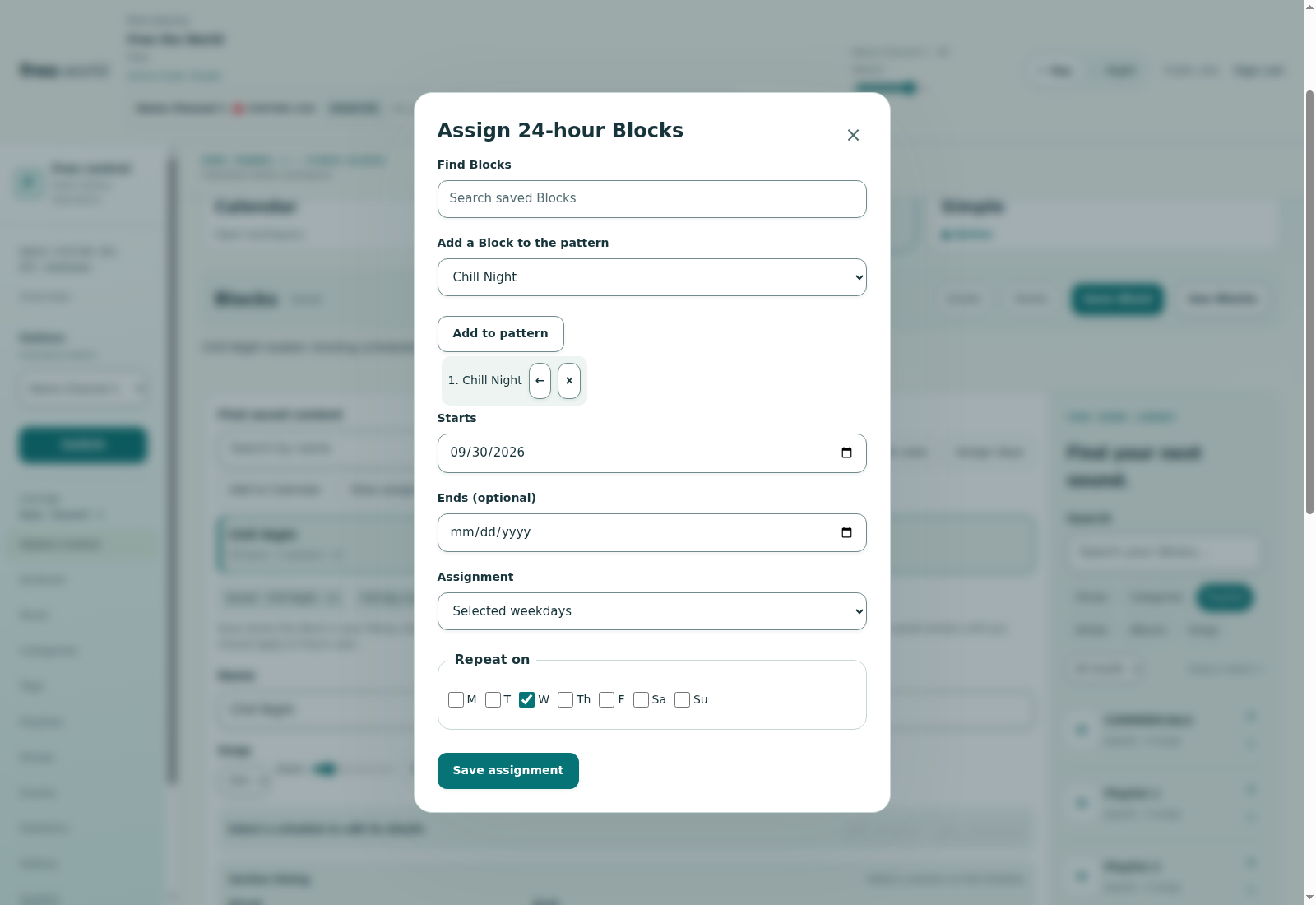
Choose the days — Prepare a weekday assignment for a saved Block. This example has not been applied.
Choose the daysPrepare a weekday assignment for a saved Block. This example has not been applied.
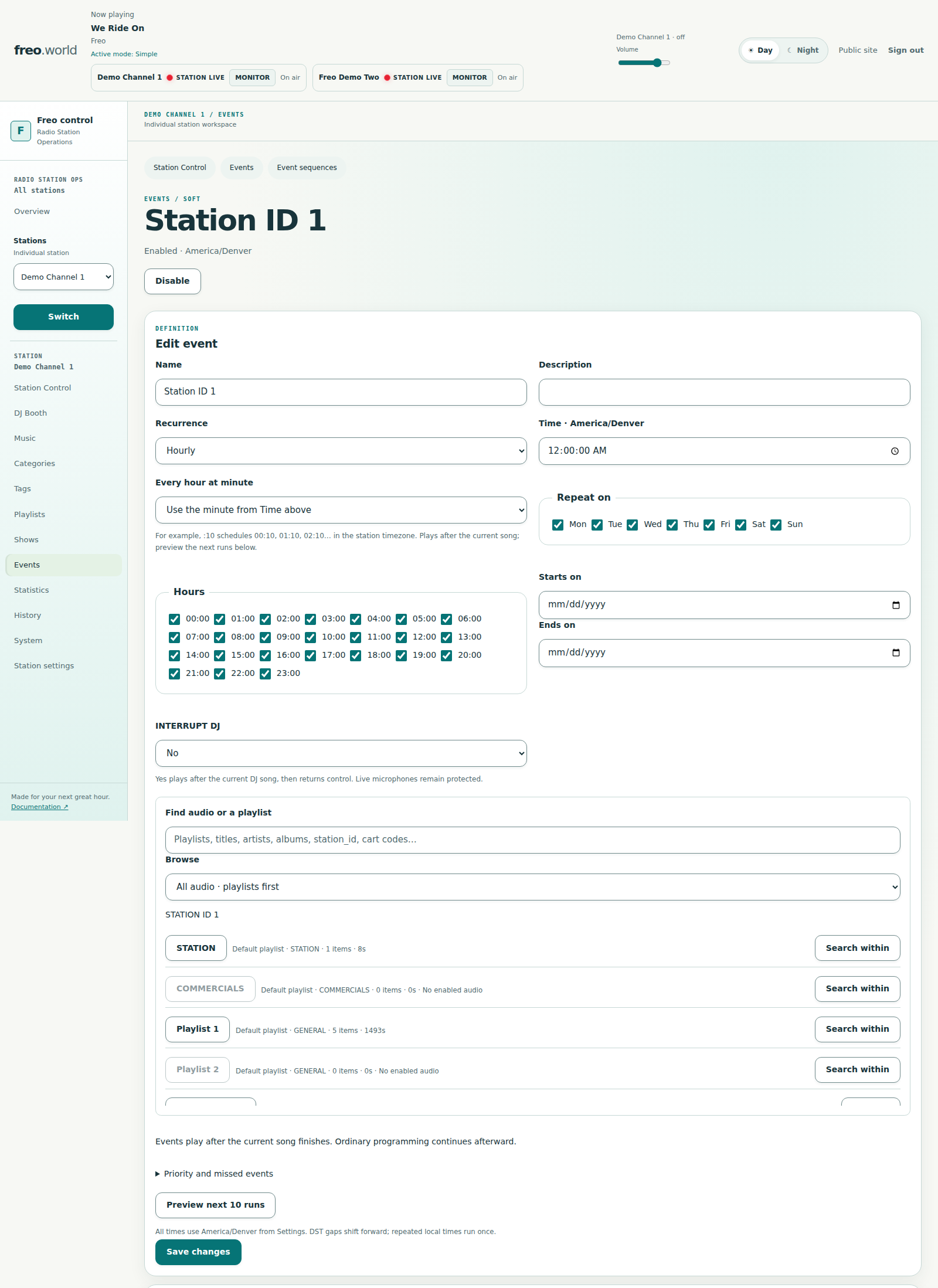
Give station audio its moment — An existing hourly station-ID event, with recurrence, audio selection and INTERRUPT DJ set to No.
Give station audio its momentAn existing hourly station-ID event, with recurrence, audio selection and INTERRUPT DJ set to No.

03 / Take the air

Automation when you want it.
Your energy when it matters.

Let the schedule run, take control of two decks, or bring your voice into the mix. The booth keeps your station's sound close at hand.

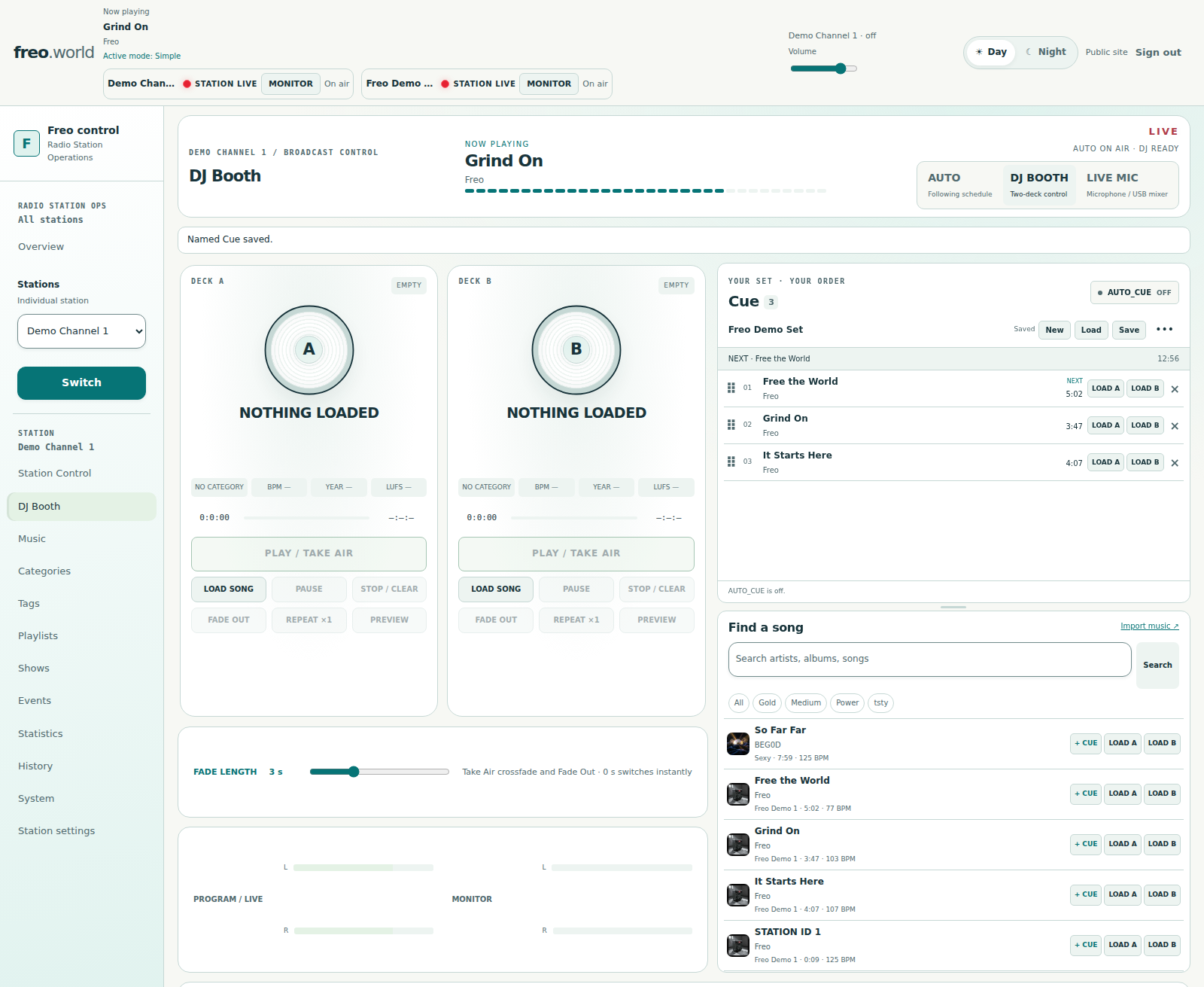
Two decks. One station. Your control. — Prepare the next song, preview privately, and take the air with a chosen fade.
Two decks. One station. Your control.Prepare the next song, preview privately, and take the air with a chosen fade.
THE DJ BOOTH

Make the transition
your own.

Load a song without interrupting Auto. Choose a fade from 0 to 10 seconds and Take Air. Pause, resume, repeat once or fade out. Return to your scheduled sound when your session is done.

  • Matching decks with observed Live and Ready states
  • Private song audition and persistent Master Monitor
  • Program and browser monitor meters
  • Eight hot carts and four station-ID slots
Explore the booth controls
CUE & SAVED SETS

Prepare a set. Keep it moving. Add and reorder songs in a persistent working Cue, drag entries onto either deck and save named sets to return to later. AUTO_CUE continues after songs finish and moves completed entries to the bottom, even with the browser closed. Your saved set keeps its order until you save it again.

Explore Cue ↗

Cue playback is separate from private audition and station AUTO scheduling. AUTO_CUE follows song endings; it does not promise gapless mixing.

AUTO

Let the station find its flow.

Keep an eye on the active program, current song and next selection. Monitor your stream and skip through a worker-controlled fade.

Following your schedule — Auto keeps scheduled playback and station status in view.
Following your scheduleAuto keeps scheduled playback and station status in view.
LIVE MIC · OPTIONAL

A voice behind the music.

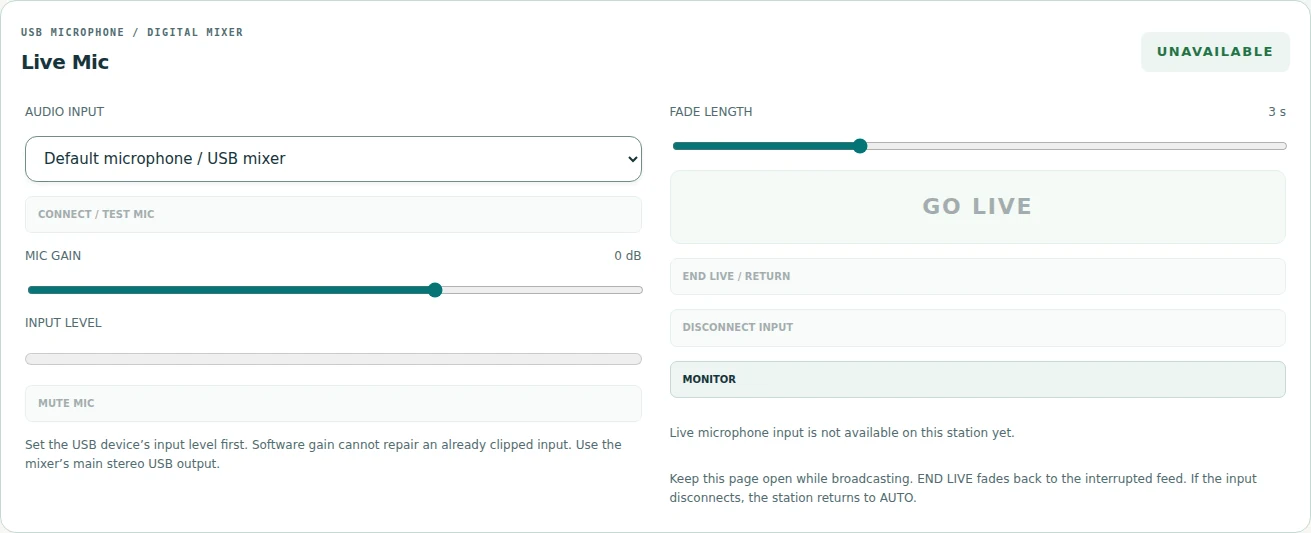
Test a browser microphone or USB mixer input off air. Set your gain, go live, then fade back to the interrupted feed.

Bring your voice on air — The Live Mic console, shown off air. Requires the optional gateway and working WebRTC connectivity.
Bring your voice on airThe Live Mic console, shown off air. Requires the optional gateway and working WebRTC connectivity.

YOUR STATION'S SIGNATURE

Make a moment.
At the press of a cart.

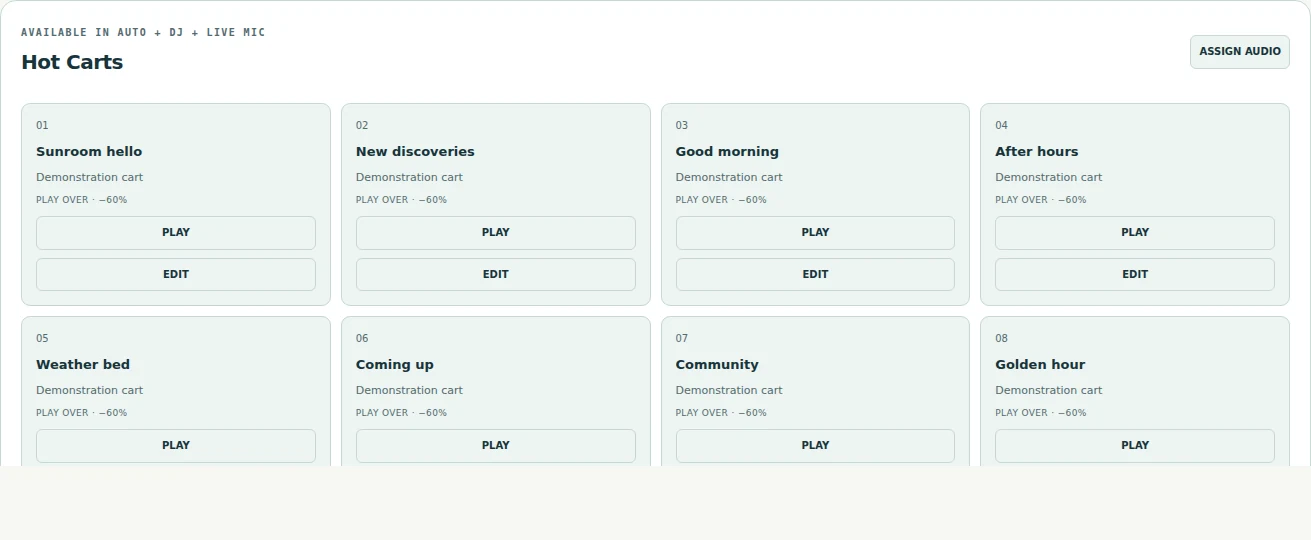
Fire an ID, sweeper or promo from your station audio. Eight hot carts and four station-ID slots let you play over with ducking, or take over and resume the interrupted audio afterward. One cart plays at a time; the cart wall stays with you in Auto, DJ and Live Mic.

Your carts, always close — Assignable audio, clear labels, and play-over or takeover behavior. One cart plays at a time.
Your carts, always closeAssignable audio, clear labels, and play-over or takeover behavior. One cart plays at a time.
A Cue for your next set — Songs in the working Cue, ready to load onto either deck. Shown in DJ standby with TAKE AIR and AUTO_CUE off.
A Cue for your next setSongs in the working Cue, ready to load onto either deck. Shown in DJ standby with TAKE AIR and AUTO_CUE off.
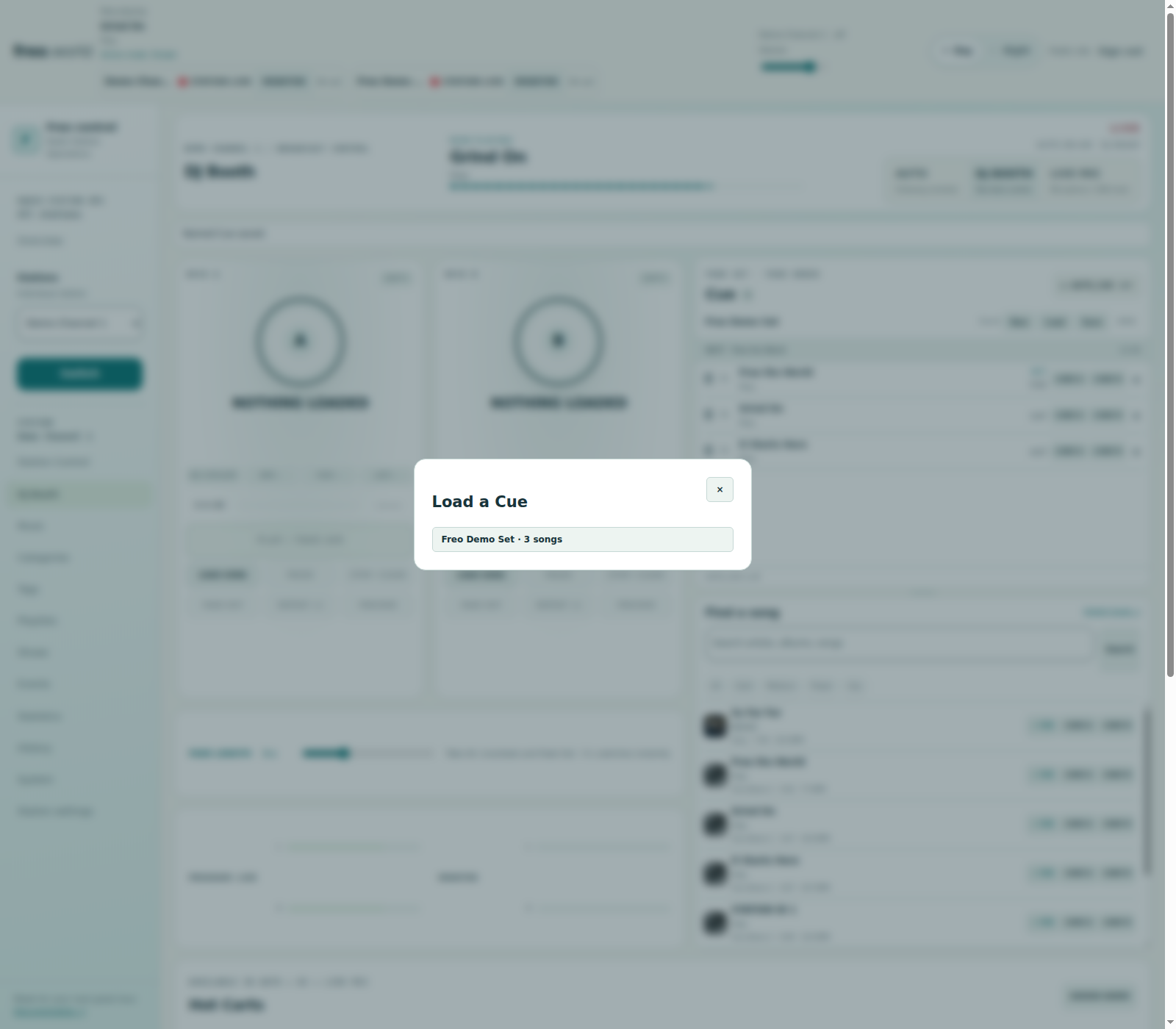
Save a set to return to — A named example set alongside the persistent working Cue.
Save a set to return toA named example set alongside the persistent working Cue.

04 / Your sound, in numbers

Know what plays.
See what connects.

Go beyond a listener counter. Explore your audience, music, feedback, resources and broadcast reliability, across one channel or the whole installation.

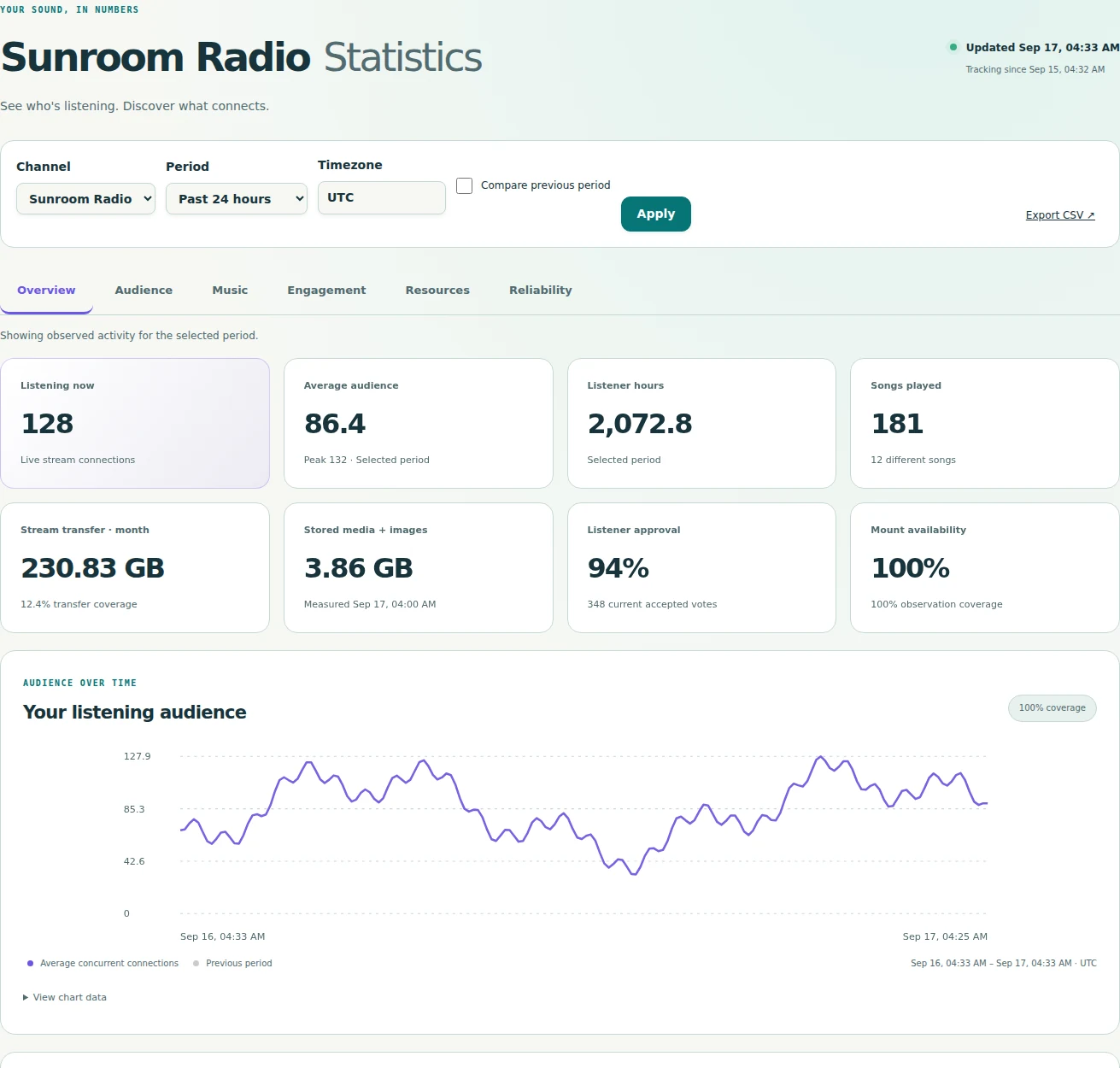
Your station, in perspective — Audience, confirmed plays and listener preferences. Demonstration data.
Your station, in perspectiveAudience, confirmed plays and listener preferences. Demonstration data.
AUDIENCE & REACH

A world around your station.

Follow current, average and peak connections, listener-hours and approximate geography. Keep stream listeners separate from player-page visitors.

MUSIC & ENGAGEMENT

Find the songs that resonate.

See confirmed song and artist plays, likes, dislikes and approval. Compare periods and take the data with you as CSV.

RESOURCES & RELIABILITY

Keep the bigger picture in view.

Track stream transfer, storage, mount availability, low audio levels and broadcast outcomes. Missing observations stay visible as gaps.

Every connection has a place — A locally rendered map of approximate locations. Demonstration data; connections are not unique people.
Every connection has a placeA locally rendered map of approximate locations. Demonstration data; connections are not unique people.
LOCAL BY DESIGN

Analytics uses a local geographic database and locally served maps. Raw listener addresses and user agents are not stored in analytics.

Understand the numbers ↗

YOUR STATION’S FRONT DOOR

A home for
your whole station.

Every installation includes a customizable public homepage, separate from its channel players. Give listeners somewhere to discover your sound and the people behind it.

Make it yours. Then publish.

Choose hero photography, station branding and a story. Automatic channel cards, published schedules and real library totals keep the page connected to your radio. Add announcements, social links and contact details you choose to publish, plus search and sharing metadata.

Set the Day/Night appearance independently of your workspace. Keep edits in a private draft, preview desktop and mobile layouts, then publish when you are ready. Restore any of six retained published versions.

Explore the website editor ↗
Freo Radio example station homepage with hero photograph, library totals, channel cards and station story
One installation. Its own identity.An example station homepage in its chosen Day appearance. Add your own branding and photos; library totals come from your station.
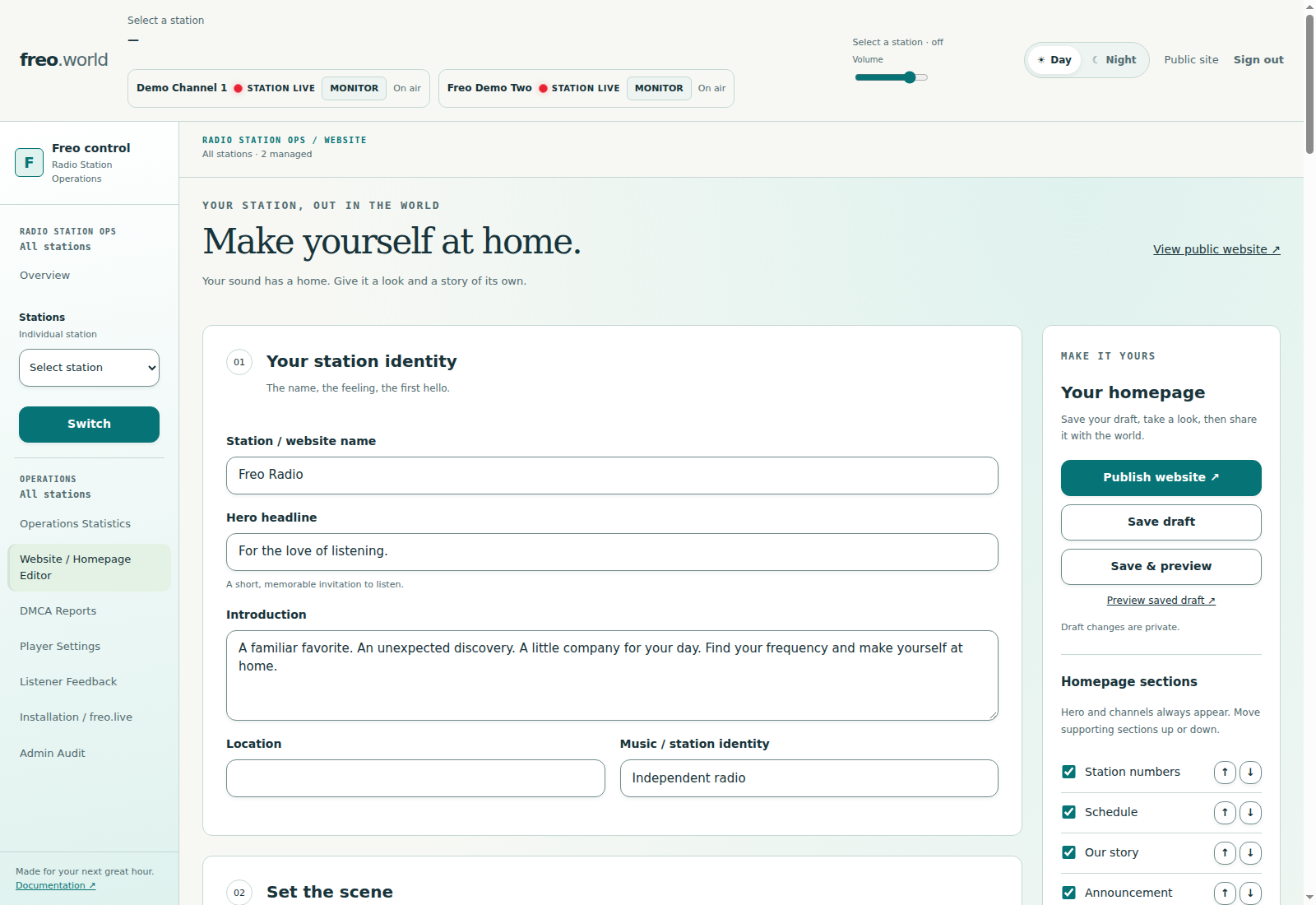
Make room for your story — The website editor with station identity, private-draft and publication controls.
Make room for your storyThe website editor with station identity, private-draft and publication controls.
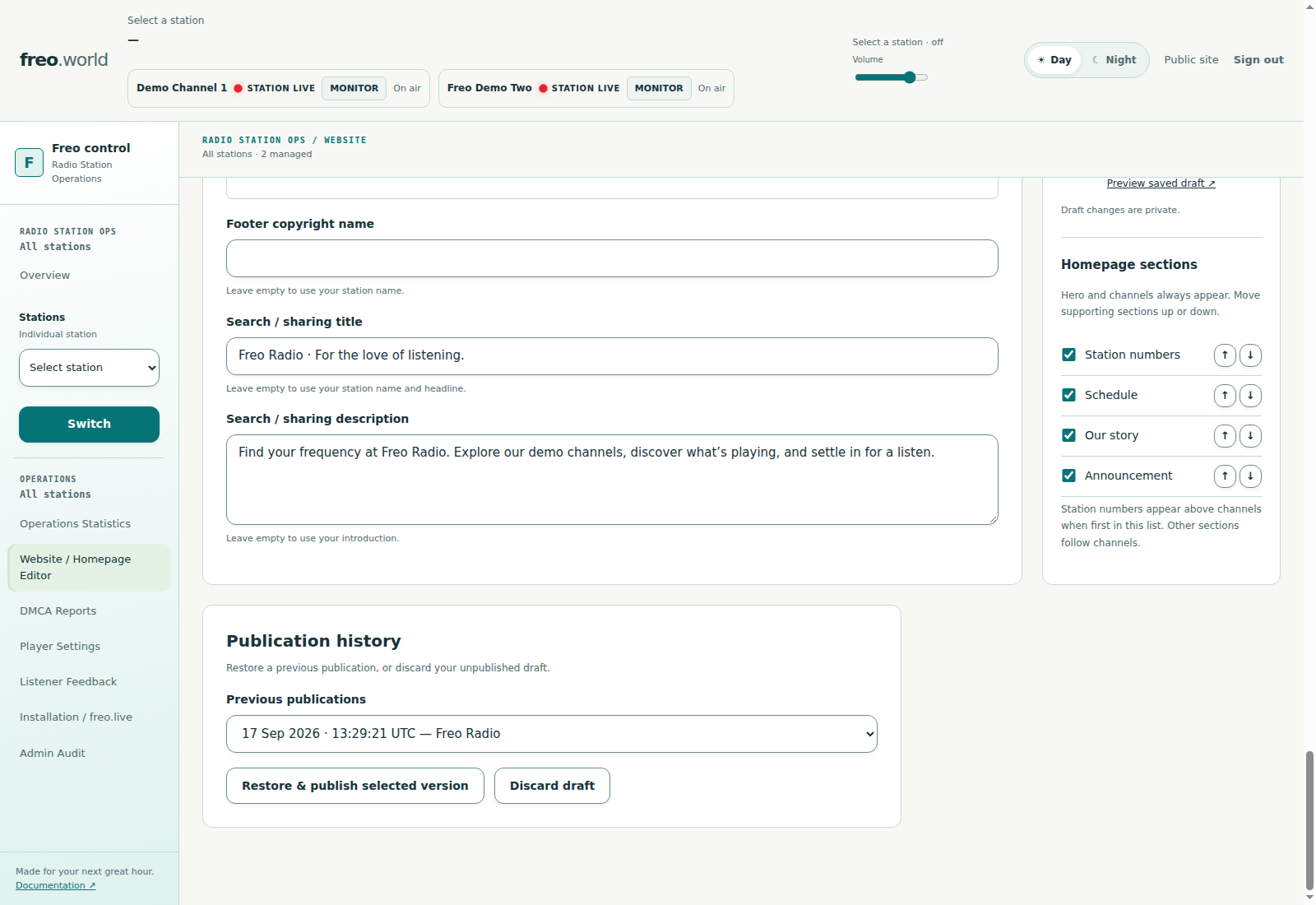
Return to a published version — Publication history with restoration and draft-discard controls.
Return to a published versionPublication history with restoration and draft-discard controls.
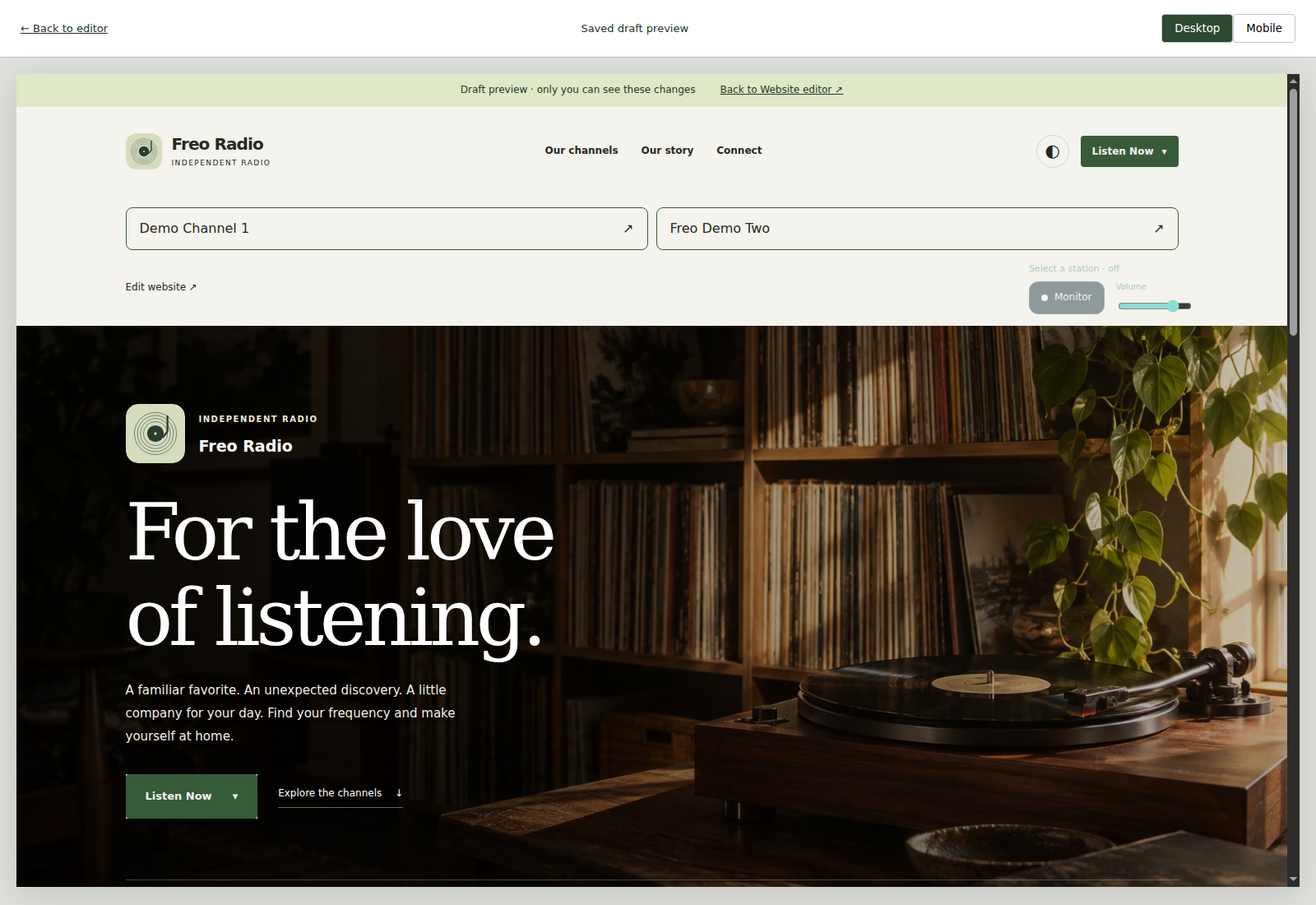
Preview before you publish — A saved private draft in the editor’s desktop preview.
Preview before you publishA saved private draft in the editor’s desktop preview.
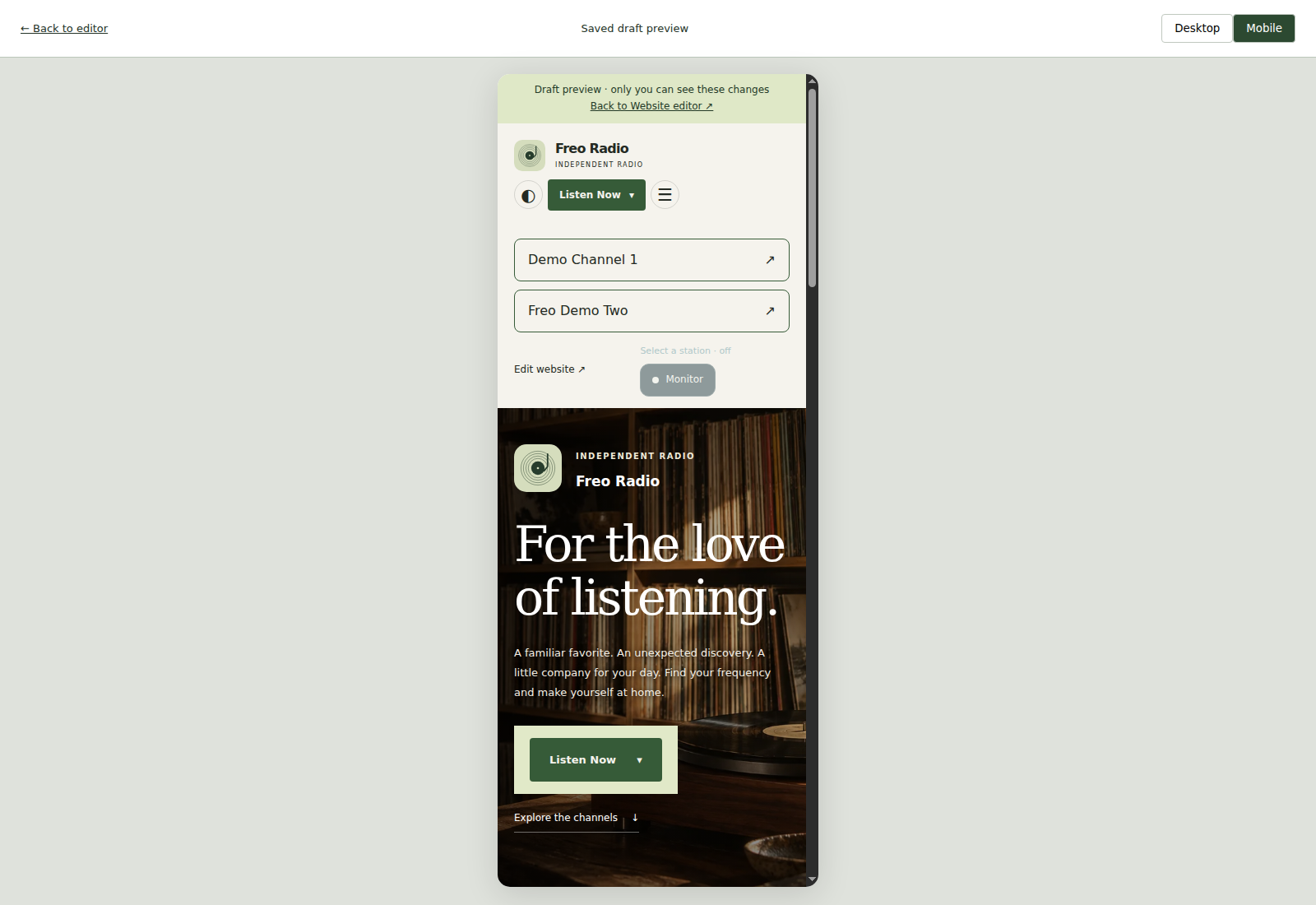
See the smaller screen — The editor’s mobile preview frame, shown inside a desktop workspace.
See the smaller screenThe editor’s mobile preview frame, shown inside a desktop workspace.

05 / On the other side of the speakers

A little place
to tune in.

Your station deserves a listening experience with as much personality as its music.

Give it a cover, artwork and your own colors. Share announcements and socials. Publish the schedule, make room for sponsors, and hear back through song votes and private comments.

  • Record-inspired player with Day and Night appearances
  • Published Day, Week and Month schedules
  • Custom station domains and stable listening links
  • Mobile listening controls and reduced-motion options
Find a station

A PLAYER FOR EVERY CHANNEL

One tap closer
to your sound.

Your homepage brings the channels together. Each channel’s player gives listeners its own identity, live listening controls, published schedule and ways to respond.

Keep stable listening links, choose your own colors and use a verified custom domain. Day/Night appearance and reduced-motion preferences make room for different ways to listen.

Explore the live demo players ↗
Your channel, playing beautifully — The current public player with record artwork and browser playback controls.
Your channel, playing beautifullyThe current public player with record artwork and browser playback controls.
Take the station with you — The same channel player captured at a 390-pixel mobile width.
Take the station with youThe same channel player captured at a 390-pixel mobile width.

THE WHOLE INSTALLATION

Keep your stations
in view.

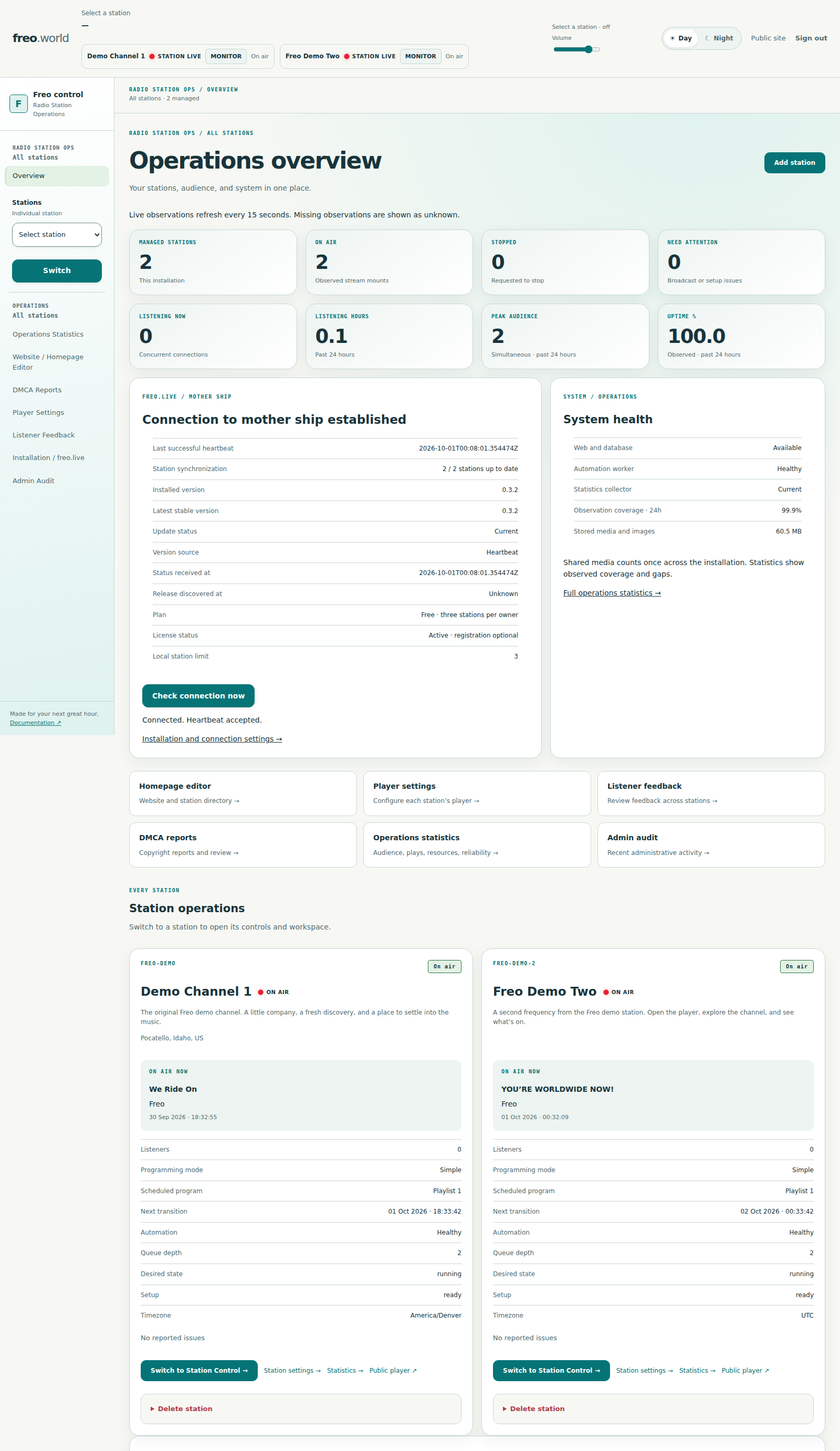
See observed broadcast and worker health, aggregate statistics and connection status in one Overview. Switch to a station’s controls while monitoring stays with you.

Every station, together — Two demo stations in the all-station Overview. Health, counts and connection status reflect the moment of capture.
Every station, togetherTwo demo stations in the all-station Overview. Health, counts and connection status reflect the moment of capture.

Know what is running.

Check your running version and update status, then use Station Control’s MASTER BROADCAST switch to start or stop a station. Signed upgrades, encrypted backups and verified restoration remain administrator workflows with preparation and a maintenance window.

Explore station operations ↗

The details make the station

Small touches.
Serious capabilities.

From your first import to the commercial log. Explore the full feature set included in Freo 0.3.2, from everyday music preparation to running your station.

01 Music & playlists

Read the guide ↗

Scroll across to explore

Music & playlists capabilities
CapabilityWhat Freo includesIn practice
A connected catalogArtist, album and song views; metadata, artwork, notes and review flags.Search, filter and organize in one workspace.
Import & analysisReview WAV, M4A, MP3 and FLAC files, batches and folders; detected metadata/artwork, album grouping, shared edits and compilation artists. Assign playlists during import.Saved workspaces, duplicate detection, individual retries and corrections without uploading again. Uploaded files and saved edits resume; incomplete uploads may need reselection.
Audio analysisBPM, waveform, loudness and true peak analysis with background processing.Preparation stays out of the broadcast path; originals are preserved.
Music, STATION & COMMERCIALSOne audio library with classification-maintained collections. STATION holds IDs, promos, announcements, jingles, sweepers, liners and carts; COMMERCIALS holds advertising audio.Station and commercial audio remains private to its station and excluded from ordinary music fallback.
Categories & tagsMultiple categories, colored tags, bulk assignment and membership Undo.Each channel keeps its own organization.
PlaylistsStraight order or non-repeating Random cycles; bulk additions, reordering and scheduling.Category, artist and album additions copy the current songs.
Preview & level matchingPrivate audition, seeking, original/normalized listening and station loudness targets.Playback gain preserves original audio files.

02 Programming & on-air moments

Read the guide ↗

Scroll across to explore

Programming & on-air moments capabilities
CapabilityWhat Freo includesIn practice
Calendar, Blocks & SimpleThree scheduling modes, reusable Shows and saved Blocks in Calendar and Simple.Calendar autosaves with Undo/Redo and unsaved-edit recovery. Shows, Blocks and Simple use Save; activation remains explicit.
Saved versionsCalendar placements and Simple selections retain the saved Block version you chose.Block edits do not silently replace existing uses. Apply to future uses updates Calendar placements deliberately.
Rotations & clocksExplicit category rotations, repeating clock slots, previews and track/artist separation.Advanced rotation rules are distinct from visual-scheduler shuffle cycles.
Timed eventsIndividual audio, one playlist item, a whole playlist or an ordered sequence. One-time, every 15 minutes, hourly, daily, weekly and monthly schedules use the station’s timezone.New events wait for the current song to finish. INTERRUPT DJ defaults to No; Yes permits the event after the current audible DJ song. Live microphones remain protected.
Event sequences & stopsetsOrdered audio sequences, item failure policies and execution history. Commercial sequences keep their order without ordinary music between items.STATION events default to one rotating item; COMMERCIALS events default to the entire selected playlist once. These sequences are separate from 24-hour Blocks.
Traffic planningAdvertisers, campaigns, creatives, dayparts, daily logs, makegoods and CSV as-run reports.Advanced commercial planning; billing and invoicing are not included.

03 Booth & live audio

Read the guide ↗

Scroll across to explore

Booth & live audio capabilities
CapabilityWhat Freo includesIn practice
Two-deck controlLoad, Take Air, pause, resume, repeat once, clear and fade out.Choose a 0–10 second transition; prepare while Auto plays.
Cue & saved setsAdd and reorder songs, drag entries onto either deck, keep a persistent working Cue and save named sets.AUTO_CUE continues after songs finish, rotating completed entries to the bottom with the browser closed. Separate from private audition and station AUTO; no gapless guarantee.
MonitoringPersistent Master Monitor, listening volume, private preview and program/monitor meters.Program levels come from the worker; monitor levels measure browser audio.
Carts & station audioEight hot carts, four station-ID slots and classified station audio such as sweepers, promos and jingles.Play over with ducking, or take over and resume. One cart at a time.
Live MicOff-air input testing, software gain, mute, fades and disconnect fallback.Optional gateway, HTTPS and working WebRTC connectivity; browser mic or OS-recognized stereo USB input.

04 Audience & listener experience

Read the guide ↗

Scroll across to explore

Audience & listener experience capabilities
CapabilityWhat Freo includesIn practice
Audience & geographyCurrent, average and peak connections, listener-hours, approximate map and period comparisons.Connections are sampled; they do not identify unique people.
Music & engagementConfirmed song/artist plays, likes, dislikes, approval and moderated private comments.Queue entries and private previews do not count as plays.
Resources & reliabilityStream transfer, storage, mount availability, low program levels and broadcast outcomes.Coverage gaps remain visible. Stream bytes exclude website/proxy overhead.
Branded listeningCovers, artwork, palettes, announcements, socials, sponsor slots and mobile controls.Day/Night and reduced-motion preferences.
Built-in station websiteInstallation-wide homepage with hero photography, branding/story, automatic channel cards, published schedules, real library totals, announcements, social/contact details and search/sharing metadata.Independent Day/Night appearance, private drafts, desktop/mobile previews, publication and restoration from six retained published versions. Separate from channel players.
Public schedulesPublished Day, Week and Month listings, automatic schedules and custom overrides.Listener-facing listings are separate from engine control.
Reports you can useOverall or per-channel statistics, timezone-aware dates, tables and CSV export.Six views: Overview, Audience, Music, Engagement, Resources, Reliability.

05 Station & project operations

Read the guide ↗

Scroll across to explore

Station & project operations capabilities
CapabilityWhat Freo includesIn practice
Multiple channelsSeparate station engines and streams; shared artists, albums and songs without duplicated audio.Configured station limits apply. Current admins manage all stations.
Identity & domainsStation logos, descriptions, stable URL aliases, verified custom domains and optional operator-entered city-level coordinates.Contacts stay private unless published; operators configure DNS and HTTPS. Coordinates describe the station, not listener locations.
Overview & broadcast controlAn all-station Overview with observed broadcast/worker health, aggregate statistics and connection status. MASTER BROADCAST starts or stops a station.Monitor audio across workspace navigation. Observed status is separate from the requested switch position; missing observations remain unknown.
Version awarenessSee the running version and Current, Update Available, Ahead or Unknown status.Version information helps administrators plan updates; it does not install them automatically.
Upgrades, backups & recoveryAdministrator workflows for signed upgrades, encrypted backups and verified restoration.Prepare and verify a matched recovery point, then schedule a maintenance window. Upgrades are not unattended, one-click or zero-downtime.
Public radio directoriesExplicit Radio Browser submission and optional Internet-Radio.com advertising through Icecast YP. Both begin off/unlisted.Independent of the Freo Live directory opt-in. Directory acceptance is not guaranteed; Radio Browser submissions do not resynchronize automatically.
History & accountabilityConfirmed playback starts, admin audit records, health views and durable control intent.Controls recheck the intended song before changing playback.
Copyright reviewPermanent public Track IDs, optional ISRC, reporting form and private case management.Review tools do not establish ownership or music licensing.
Installation integrationAutomatic installation enrollment and aggregate reporting begin at startup. Owner accounts and account linking are optional; public-directory visibility is a separate opt-in.Local listener analytics stay separate from aggregate installation reports. Reporting runs independently of playout, with cached entitlements for temporary API outages.

Explore the traffic workflow, custom domains and copyright review in detail. Explore Events and station audio, public directories and the upgrade and recovery guide. For the tested installation and reboot scope, see the release acceptance record.

Your next great hour starts here

Make it yours.
Then make it heard.

Your radio runs on your server. Community works without a Freo Live account. Create an account when you want to link your installation and manage its license.

  1. 01 / SET THE STAGE

    Install Freo.

    Bring your server and your music. The setup guide walks through the requirements.

    How to install Freo →
  2. 02 / MAKE IT YOURS

    Connect when you’re ready.

    Optionally create an owner account with your email and station name. Link your existing Freo installation using an activation code. Email verification is separate; Freo reports automatically from first startup.

    Register your site ↗
  3. 03 / FIND YOUR RANGE

    Choose your capacity.

    Start with the included allowance. Manage your installation and request an unlimited station licence when you need it.

    How licensing works →

Your station. Your server.

Good radio.
Solid foundations.

Freo connects a browser workspace to dedicated broadcast services. Your library, programming and confirmed history live in PostgreSQL; each managed station gets its own Liquidsoap process.

  1. CREATE & CONTROLFreo workspaceFlask + PostgreSQL
  2. SELECT & COORDINATEAutomation workerDurable programming & intent
  3. PLAY & MIXLiquidsoapOne engine per station
  4. DELIVER & LISTENIcecast + NginxYour public radio stream

Dedicated ingest and statistics workers support the station. Optional WebRTC microphone audio joins the engine through a separate gateway. The web app records validated commands; the automation worker controls the private playout connection.

Scroll across to explore

Under the hood
LayerTechnologyWhat it does
WorkspacePython · Flask · GunicornBrowser management, APIs and authenticated control requests
Station dataPostgreSQLMusic, schedules, command intent and confirmed playback history
Audio & deliveryLiquidsoap · Icecast · NginxStation playback, transitions and public listener streams
Media preparationFFmpeg · ffprobeValidated imports, metadata and background audio analysis
Live microphoneWebRTC / Opus · aiortcOptional browser microphone and USB audio input gateway
OperationsUbuntu 24.04 · systemdSeparate services, workers, timers and health checks
Explore the source

A side project with a very good soundtrack

We needed three channels.
So we built a station.

A love of music. A habit of making things. And one very familiar question: “What if it could also…?”

Meet the people behind the play button ↗

Make room for your next idea

Your station starts
with your sound.

A fresh Ubuntu 24.04 x86_64 server. One install command. Start with your server’s IP—no DNS setup or certificate email needed. Our installer downloads the latest stable GitHub release and verifies its signature.

Read the installation guide →

READY TO INSTALL

Freo 0.3.2 — fresh installation and reboot recovery tested and passed on Ubuntu 24.04 x86_64. See the confirmed acceptance scope and downloads. Already running Freo? Follow the upgrade and recovery guide.

A few things to know.

What do I need to run Freo?

A fresh Ubuntu 24.04 x86_64 server, your music, and the services described in the installation guide. Plan for storage and stream bandwidth. Production browser access needs HTTPS. Station Control’s MASTER BROADCAST switch starts and stops your station.

Can I run more than one station?

Yes. Freo manages separate station engines and stream mounts. Share artists, albums or songs across channels without copying the audio. Station limits depend on installation configuration and any configured entitlements; current admin accounts manage all stations.

Can I broadcast from a microphone or mixer?

Yes, with the optional Live Mic gateway installed and configured. Use a browser microphone or an OS-recognized stereo USB mixer input. HTTPS and working WebRTC connectivity are required; some networks need TURN.

What does “self-hosted” mean here?

The application, database and audio services run on your server. Local listener analytics stay on your installation. Installation enrollment and aggregate reporting begin automatically at startup. Creating an owner account and linking your installation are optional; public-directory visibility requires a separate opt-in. See the integration guide for details.

Does Freo include a station website?

Yes. Every installation has a customizable homepage alongside its channel players. Prepare private drafts, preview desktop and mobile layouts, publish, or restore one of six retained published versions. See the website features.

Does my browser need to stay open for a Cue set?

No. AUTO_CUE runs through the working Cue after songs finish, even with the browser closed. It is separate from private preview and the station’s AUTO schedule; it does not promise gapless mixing.

How do I update an existing station?

The primary administrator uses the supported signed upgrade and recovery workflow. Prepare encrypted backups and verify restoration before a planned maintenance window. Do not run the fresh installer over an existing station. Read the procedure.

Where can I learn about the project and its license?

The source and documentation are available on GitHub. Consult the repository for current source-code reuse terms. For installation entitlements and unlimited station licensing, visit Freo Live licensing. These are separate from the rights needed to broadcast music.

INSIDE FREO · DEMONSTRATION STATION

Explore Freo